
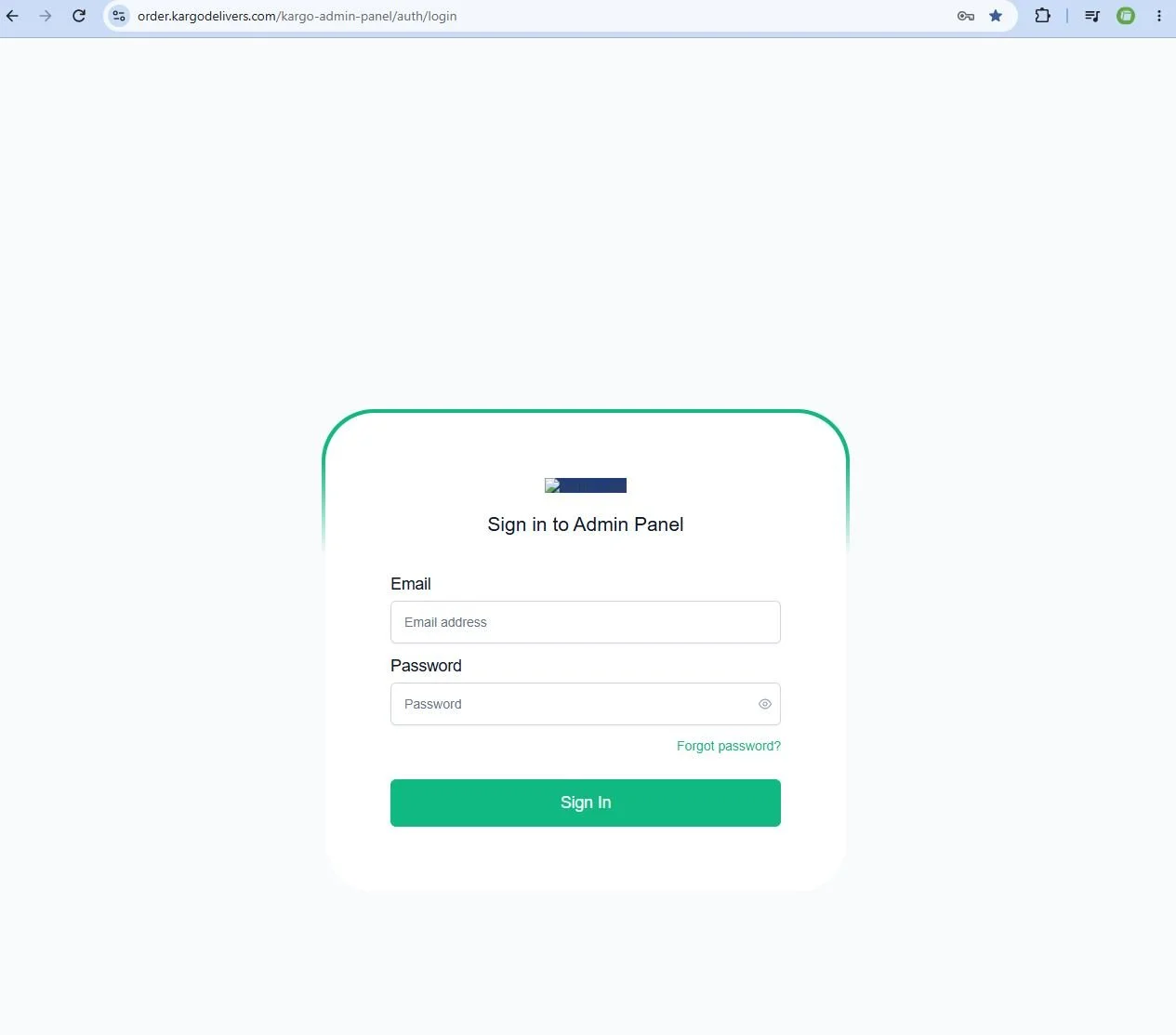
Q: HOW DO I CREATE A NEW DELIVERY?
Go to the Admin Panel and select Create Order. Enter the pickup and delivery information, contact information, and any special instructions. Review the information before submitting the order.
Q: HOW DO I ASSIGN A DRIVER TO A DELIVERY?
Click “Open Orders”. Select the green car button (Assign Driver). Then choose the correct driver. Make sure the driver is available and able to complete the delivery on time.
Q: HOW DO I CHANGE THE DRIVER ON A DELIVERY?
Open the active delivery and change the assigned driver. Always make sure the new driver knows about the delivery before making the change.
Q: HOW DO I SEE ACTIVE DELIVERIES?
Go to Active Orders to see deliveries that are currently active. Use the available filters to help find a specific delivery.
Q: HOW DO I FIND A SPECIFIC DELIVERY?
Go to All Orders and then use filter options. Search using the information available, such as the order ID, reference number, service type, trip type, ordered by, or date.
Q: HOW DO I EDIT A DELIVERY?
Go to All Orders and click pen icon, this is the “Edit Record” button. Make sure to save updates and update the driver for any Active orders.
Q: WHAT IF THE PICKUP OR DELIVERY ADDRESS IS WRONG?
Correct the address in the order as soon as possible. If a driver is already on the way, contact the driver directly so they know about the change.
Q: HOW DO I CANCEL A DELIVERY?
Open the delivery and select the option to Cancel the order. Before canceling, make sure the delivery is no longer needed. If a driver has already been assigned, notify the driver. Cancellation or no load fees will be updated on the admin end. Make sure to check with the Operations Manager on final total.
Q: HOW DO I SEE COMPLETED DELIVERIES?
Go to All Orders and select Status as “Deliviered”. You can use the filters to find older deliveries.
Q: HOW DO I SEE WHERE A DRIVER IS?
Use the Map in the Admin Panel to view available driver locations. Driver location will only show correctly when the driver is logged in and location sharing is turned on.
Q: WHAT IF A DRIVER IS NOT SHOWING ON THE MAP?
First, make sure the driver is logged into the KarGo app. Have the driver check that location permission is set to Always and that location services are turned on.
Q: HOW DO I ADD A NEW DRIVER?
Go to the Drivers and add the driver's required information. Once their account is created, the driver should receive an email asking them to create a password.
Q: WHAT IF A DRIVER CANNOT LOG IN?
First, confirm that the driver has an active account. If they already have an account, have them select Forgot Password on the login screen. Also have them check their spam or junk email folder. Double check the email they entered and the password they’ve entered into the app as well.
Q: WHAT SHOULD I DO IF A DRIVER HAS A PROBLEM DURING A DELIVERY?
Review the order and determine what the driver needs. Contact the pickup or delivery Point of Contact when needed. If the issue cannot be resolved, contact the Operations Manager.
Q: WHAT IF I MAKE A MISTAKE ON AN ORDER?
Correct the order as soon as possible. If the mistake affects an assigned driver, pickup location, delivery location, timing, or customer instructions, contact the driver immediately.
Q: WHEN SHOULD I CONTACT THE OPERATIONS MANAGER?
Contact the Operations Manager when there is a serious delivery issue, customer complaint, driver problem, major delay, system problem, or situation you cannot resolve yourself.